HPE MSA - DISCERNING STORAGE ALLOCATION
10/01/21 - storage,msa,san,kb

On the main/home screen, right in the middle is a bar which shows overall system Capacity. The top bar is your Logical capacity, and your bottom bar is the Physical capacity.
Simply put, your Physical capacity related directly to how many and what type of drives you have physically installed. If you put all of the disks in a single pool (pools can have multiple groups), then it'll be one single spot for all of your data. If you were doing a performance/archive (gold/silver) setup, you would not have a single disk pool.
Spares are marked outside of the group, as they are used only in replacement, not potential provisioning. If you notice in the above graphic, the Global Spares bar is not hovered by the logical capacity - to help better illustrate it is not for provisioning.
The Logical capacity is a little more complex.
The Reserved space is related to the RAID configuration of your Disk Groups. Say I have 4 different disk groups in the same Pool, and they are all configured in RAID 10 (like the above graphic), then half of Virtual Disk Groups' space will show as Reserved.
Allocation can be a little confusing, especially how vCenter ties in to it.
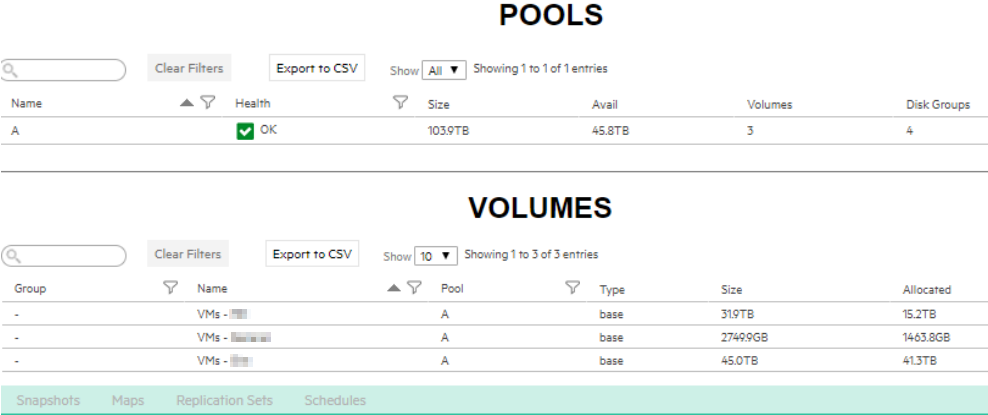
Allocation is how much space is written on the vvol's (Virtual Volumes).
Unallocated is how much space is provisioned on the vvol's, but not written to. This has nothing to do with how much available space on the pool there is. If you go to the Pools view, you can see how much total unallocated space is on the pool. This is not the same as unprovisioned. Unallocated on the pool could mean it's provisioned, or not provisioned, it's just not written to (or, allocated). You could also figure this math out manually on the main screen.
In the Volumes view, you can see a list of vvols.
The Size is how much space is provisioned, it's max size, if you will.
The Allocated is how much has actually been written.
The way the MSA's are with vvols, is that they are actually thin-provisioned. This means - if absolutely necessary (such as, you are relocating data from a single volume to multiple smaller volumes) - you are able to over-provision the storage.
In order to do this successfully, and painlessly, is that you will need to unallocate freed space on the vvols after removing the data from them. Simply removing the data does not make the vvol smaller. This is important to know, especially with VMware's VMFS. VMFS 6 can automatically unallocate (unmap) freed space on the datastore, which will translate to the vvol on the MSA. With VMFS 5 and earlier, you need to do this manually. Best way is to enable ssh on a host with access to the datastore, and run it via cli on that host. The unmap command can run-away, leaving you having to reboot the host the command is running from.
Do NOT over-provision the MSA, and run storage until it is fully out of space. This will lock any VMs running from that storage, and leave you with only the option of deleting things to recover live.
Comments Section
Alaa - 2021-11-17
This really helps clear some of this up. I was confused with how this all came together